
My Teams
League HQ
Section titled “League HQ”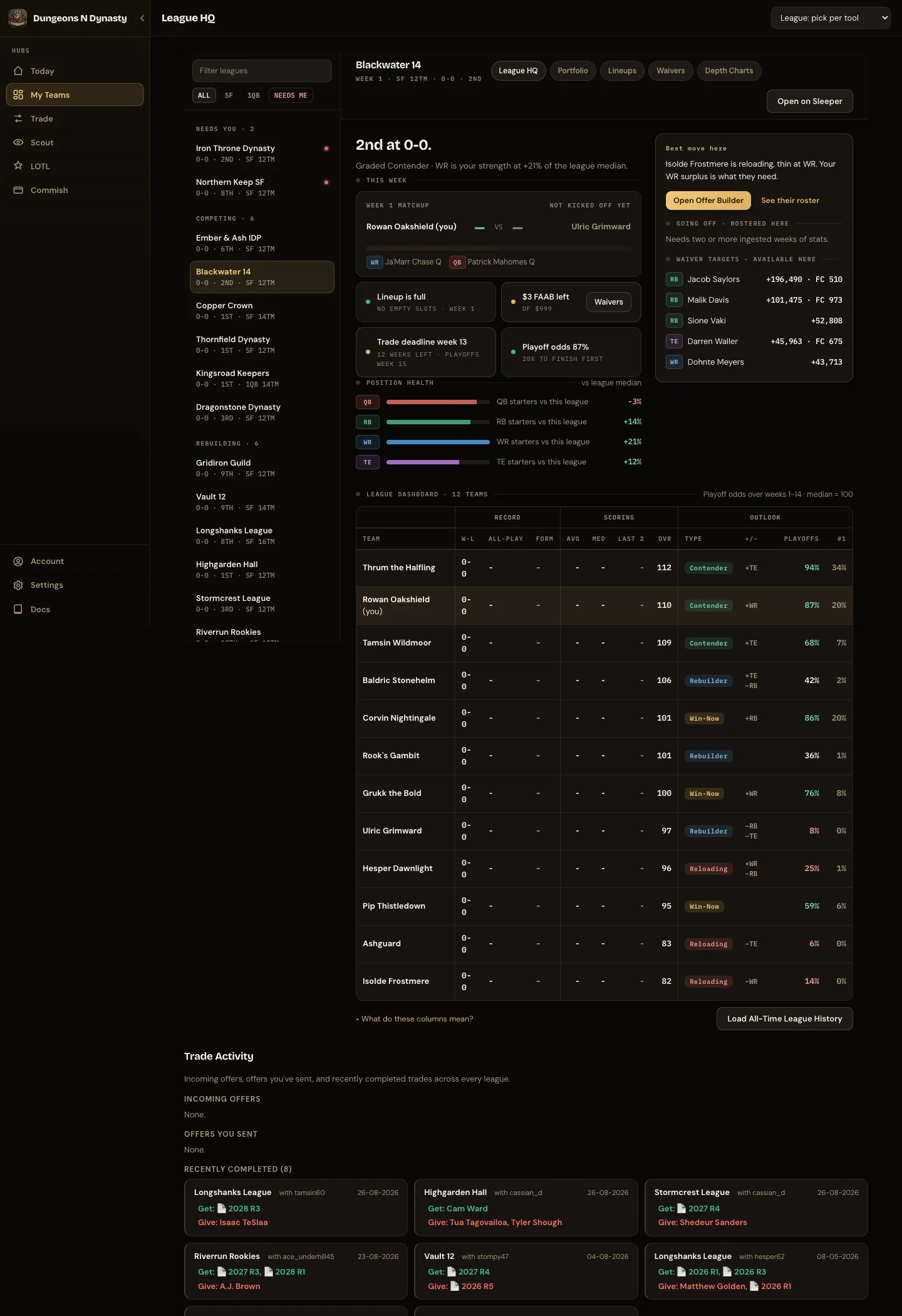
League HQ gives you an at-a-glance view of one team. See your matchup, lineup issues, FAAB, trade deadline, playoff outlook, strongest positions and weak spots. Best move here suggests a trade partner whose roster may fit your needs, with a jump into the Trade Calculator’s game plan.
Pick a league from the list on the left, which groups your leagues by what they need from you. On a phone, tap the league name in the header.
The standings table below covers every team: record, scoring, roster strength, team type, strong and weak positions and playoff odds, with your row highlighted.
Offers in this league sits under the status cards: any offer waiting on you here, as a card with a grade and Accept, Decline and Counter; any offer you sent here, as one line with Withdraw; and your recent trades in this league. All leagues opens Offers.
A league you have opened before loads almost instantly.
Offers
Section titled “Offers”One inbox for every trade offer, across all your leagues. The headline says how many need an answer. Three cards under it are also the filters: waiting for you, you sent (with the age of the oldest and how many are getting stale) and completed. Pick a league to narrow any of them.
Each offer waiting on you is a card: the league, who sent it, how long it has been open, and a grade in the same adjusted value Today uses (“you win by 14%”, “light by 9%”, “fair”). You get and You give list every player with position and team, every pick with its round and whose it was, and any FAAB. Accept and Decline act on Sleeper directly; Counter opens Mass Offers against that league; Details shows the raw and adjusted totals behind the grade. Offers you sent show the same card with Withdraw. Completed lists your recent trades as one line each.
Today’s “offers waiting” card and each row under its Pending offers list open this inbox, filtered to that league. The badge on My Teams counts the offers waiting on you.
Portfolio
Section titled “Portfolio”Where your value sits across every league:
- the players you own the most copies of, and how much of your total value each represents,
- which NFL offenses you lean on,
- position and age mix,
- value tied up in injured players,
- movers since last week.
Hover a row to see which leagues hold that player. The same view is available for any manager under Scout → Manager DeepDive.
Lineups
Section titled “Lineups”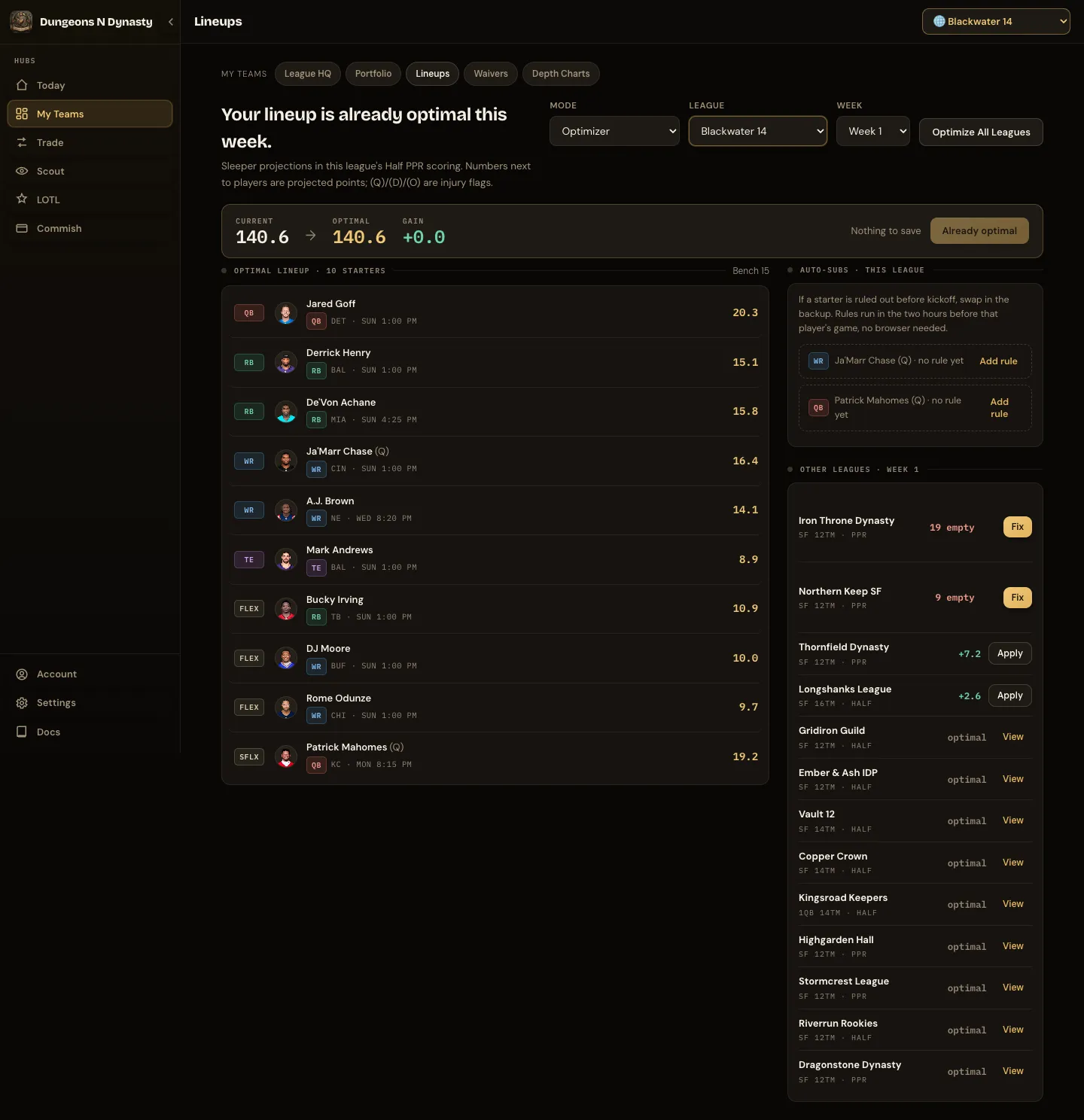
Lineups tells you what to change and lets you save it in one click.
Optimizer shows the gain first (“One swap still open: +3.1 this week”) with a matchup bar that stays in view while you scroll: your score, your opponent’s, the projected finish and what saving would add. Starters are listed with the recommended changes already in place; tap an open row to see the bench players who can take that slot, with the ones who cannot (already played, locked, or kicking off earlier) greyed out with the reason. Players whose game has started are locked and stay where they are, and Save only submits the open slots. Until a game in your matchup kicks off, the bar shows projected totals for you and your opponent; after that it shows the live score. Projections are scored with each league’s own settings, so first-down points, TE premium, 6-point passing touchdowns and IDP count the way they do in Sleeper. Best-ball leagues show a note instead of swaps, because Sleeper sets those lineups itself.
Every other league sits beside it. Leagues with empty slots get Fix, leagues leaving points on the bench get Apply, and leagues that are already set get View. Optimize All Leagues does every league in one go. Leagues where Sleeper sets the lineup automatically (best ball) are marked auto and skipped.
Auto-subs arm a replacement for a starter whose status is in doubt. Only bench players whose game kicks off at the same time as the starter’s or later can be named. If he is ruled out before lock, the swap is made for you and Today shows it under armed auto-subs.
Manual, all leagues edits every league’s lineup on one page with the bench and injury flags in view.
Reading the numbers: the number next to a player is his projected points this week in your league’s scoring. (Q), (D) and (O) mean Questionable, Doubtful and Out. Custom scoring settings can make projections differ slightly from Sleeper’s.
Waivers
Section titled “Waivers”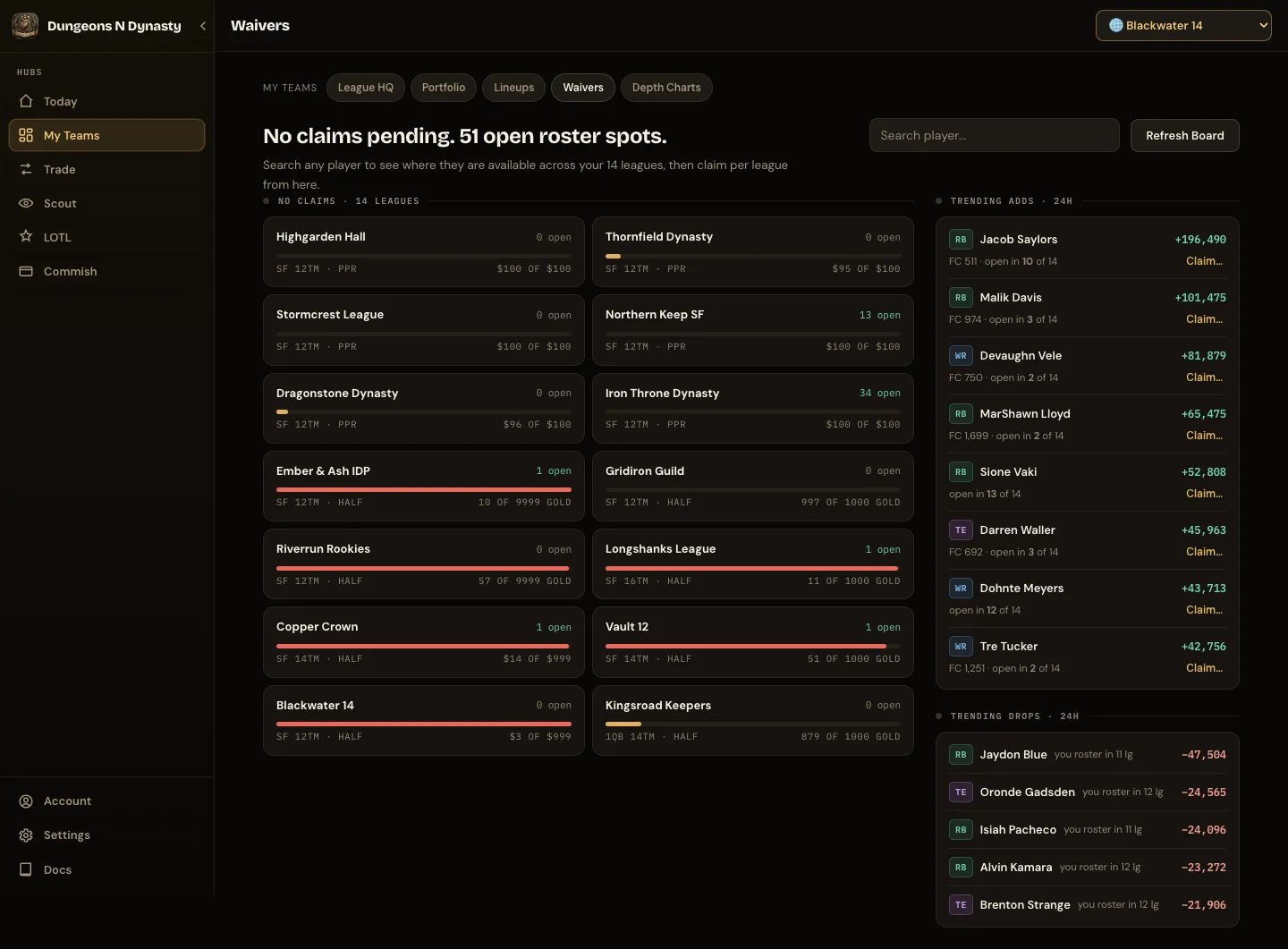
The headline counts your pending claims and open roster spots across every league. Leagues with pending claims come first, each with its FAAB bar and claims; the rest show open spots and budget left. Trending adds show each player’s value, how many of your leagues still have him available, and a Claim link. Trending drops show how many of your rosters hold him. Search any player to see where he is available across all your leagues and place claims without opening each league in Sleeper.
Depth Charts
Section titled “Depth Charts”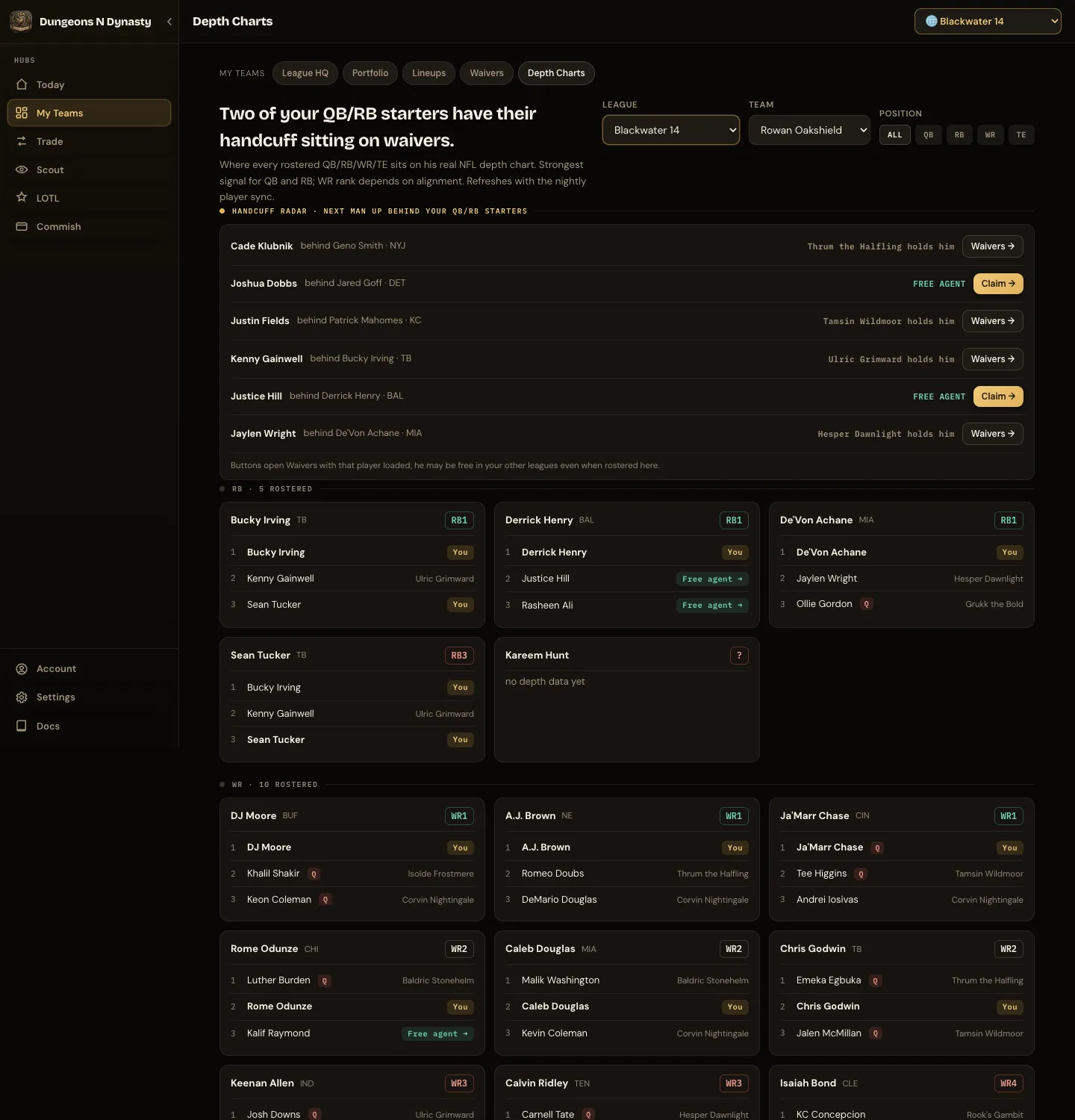
Depth Charts helps you find valuable backups before anyone else does. The Handcuff radar comes first: the next man up behind each of your QB and RB starters, whether he is available or who holds him, and a Claim or Waivers button. Below it, every player on the roster with his place on his NFL team’s depth chart and who owns the players ahead of him. Filter by position, or switch to a leaguemate’s roster to scout their backups. Most reliable for QB and RB. Depth charts update every night.
What Vegas says (Lineups)
Section titled “What Vegas says (Lineups)”Under each player in Lineups you may see a line like “Vegas · IMP 27.4 · fav 2.5 · TD 42% · 59.5 rec yds · ≈ 13.1”. That is the betting market’s view of his game: how many points his team is expected to score, whether they are favoured, his chance of a touchdown, and his yardage lines, with those lines scored like your league at the end. Sleeper’s projection stays where it was. Use the market line as a second opinion when you are on the fence between two players. It appears once the week’s lines are in, usually from Thursday, and only for players the books price. Nothing here is betting advice and no sportsbook is named.